
How to generate API keys from Complyance? (Malaysia)
Once your MyInvoice account is set, you will have to sign up to "Complyance" to generate the API keys.
Let's see how:
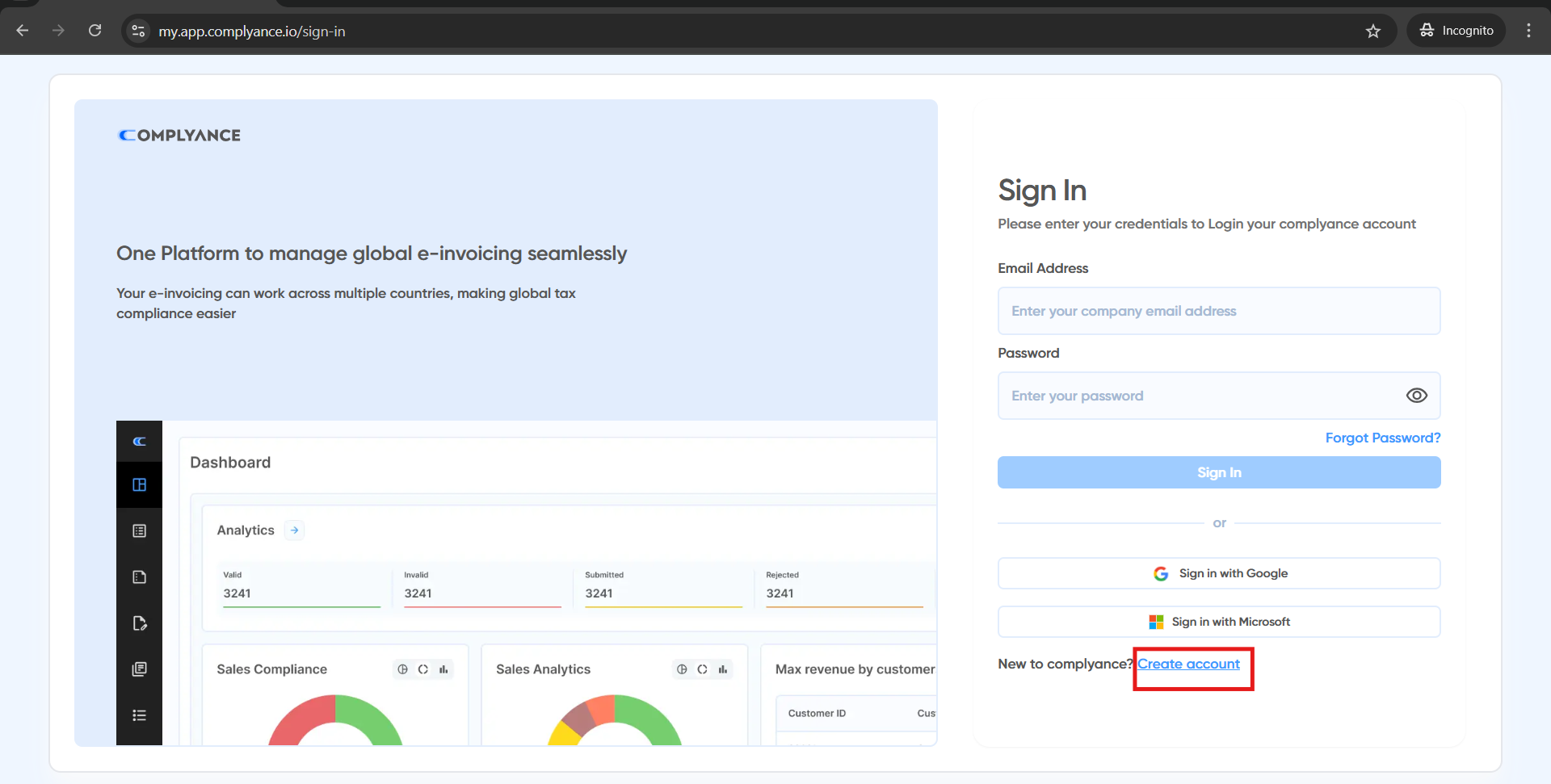
Step 1: Visit https://my.app.complyance.io/sign-in and click on "Create Account".
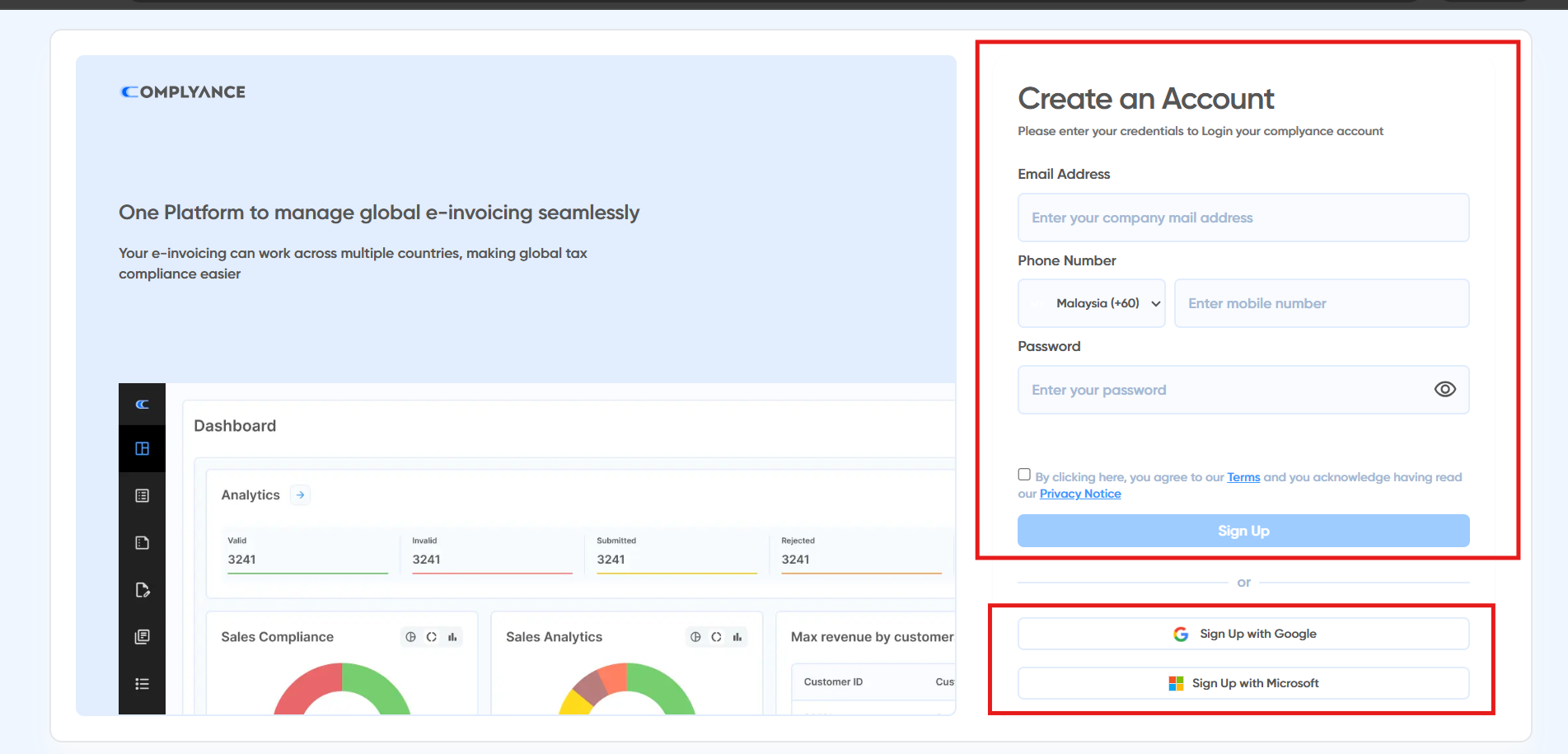
Step 2: Sign up with your Google/Microsoft credentials OR use your Email & Phone Number to create a new account.
Step 3: Verify your account.
You will receive a Verification Link OR a Verification Code in your email.
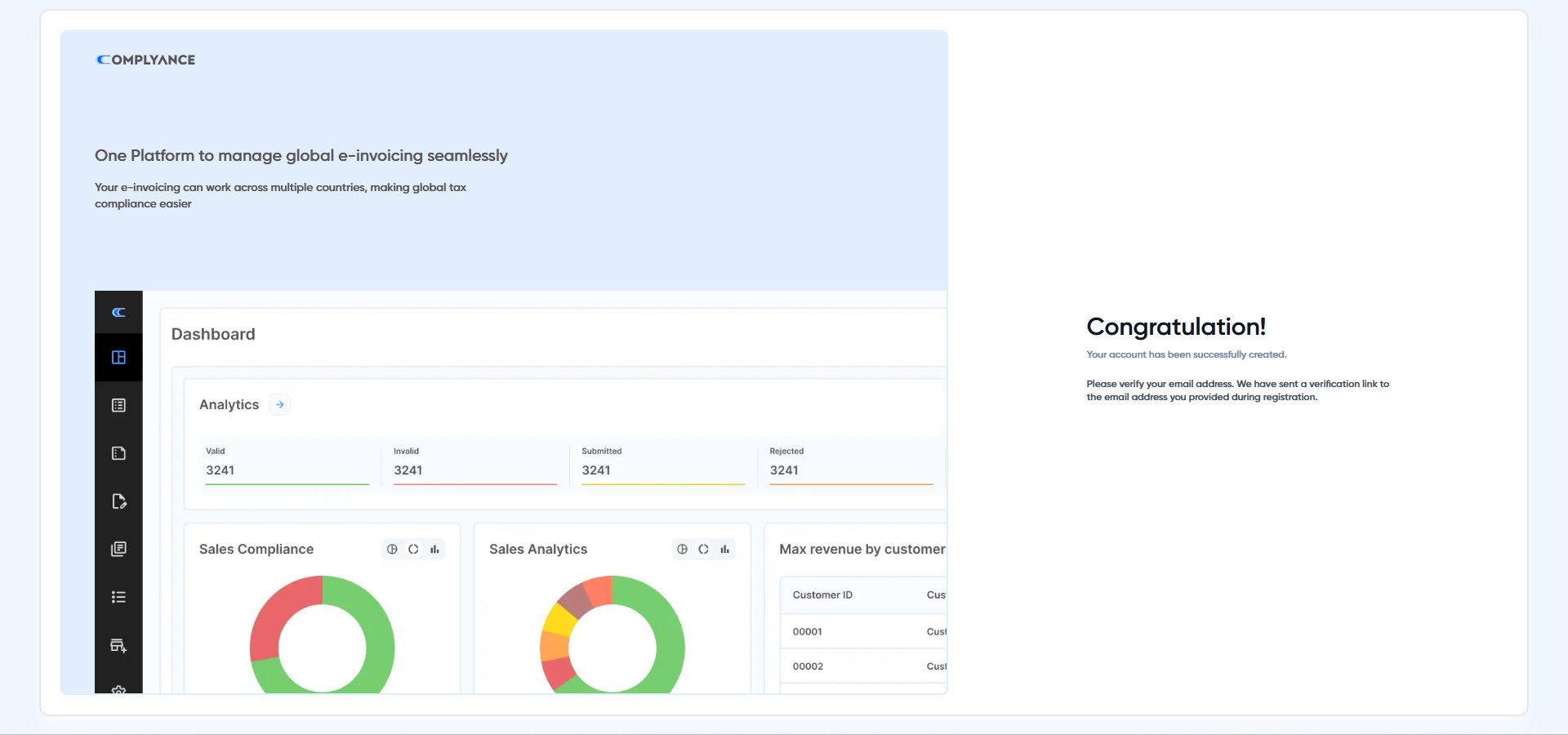
Just click on the verification link in your email, OR copy-paste the code to complete the verification:

Step 4: Add your name, preferred name, and company name
4.1: Add Your Name
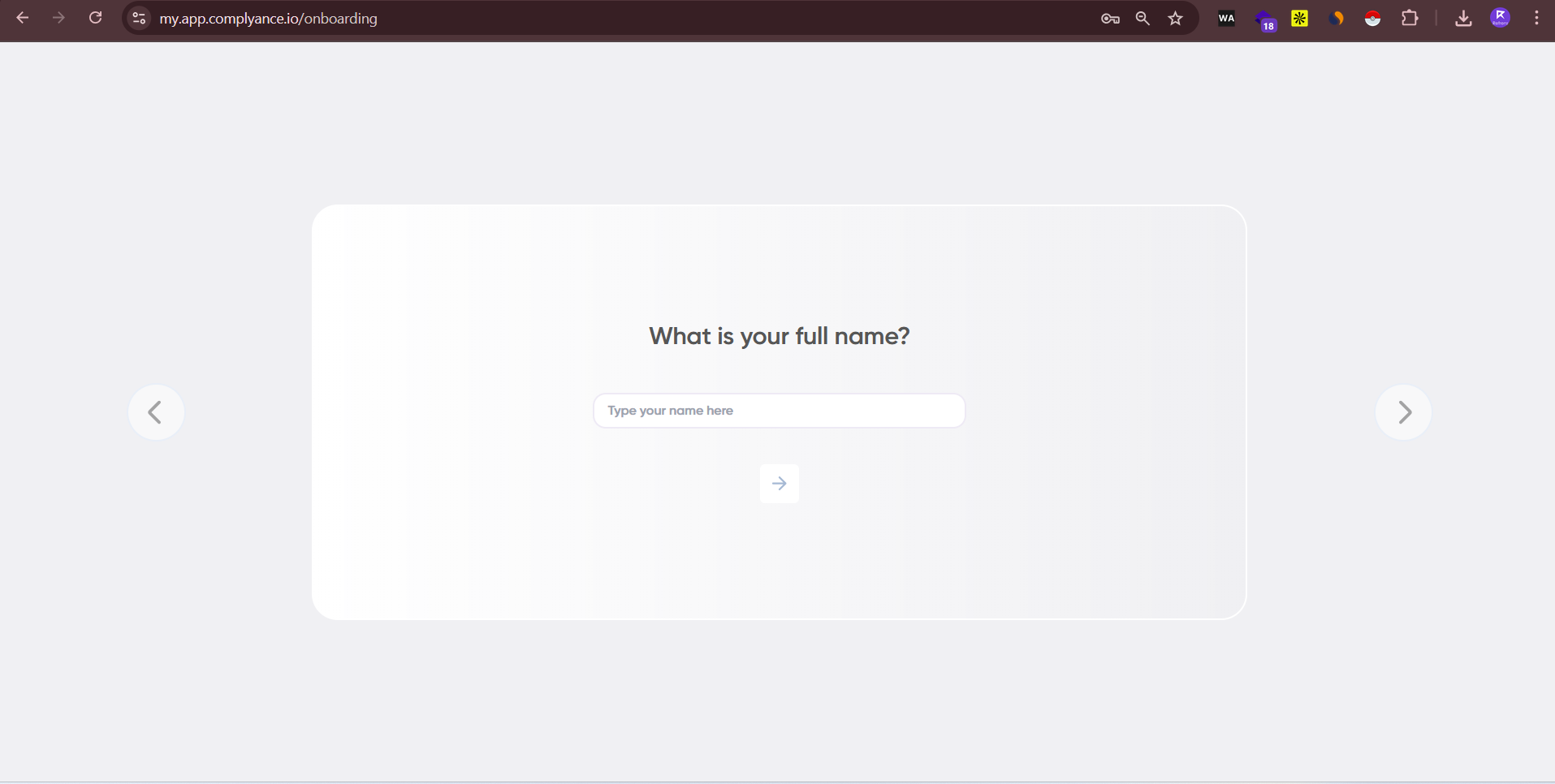
4.2: Add Your Preferred Name (Can be the same as your name)
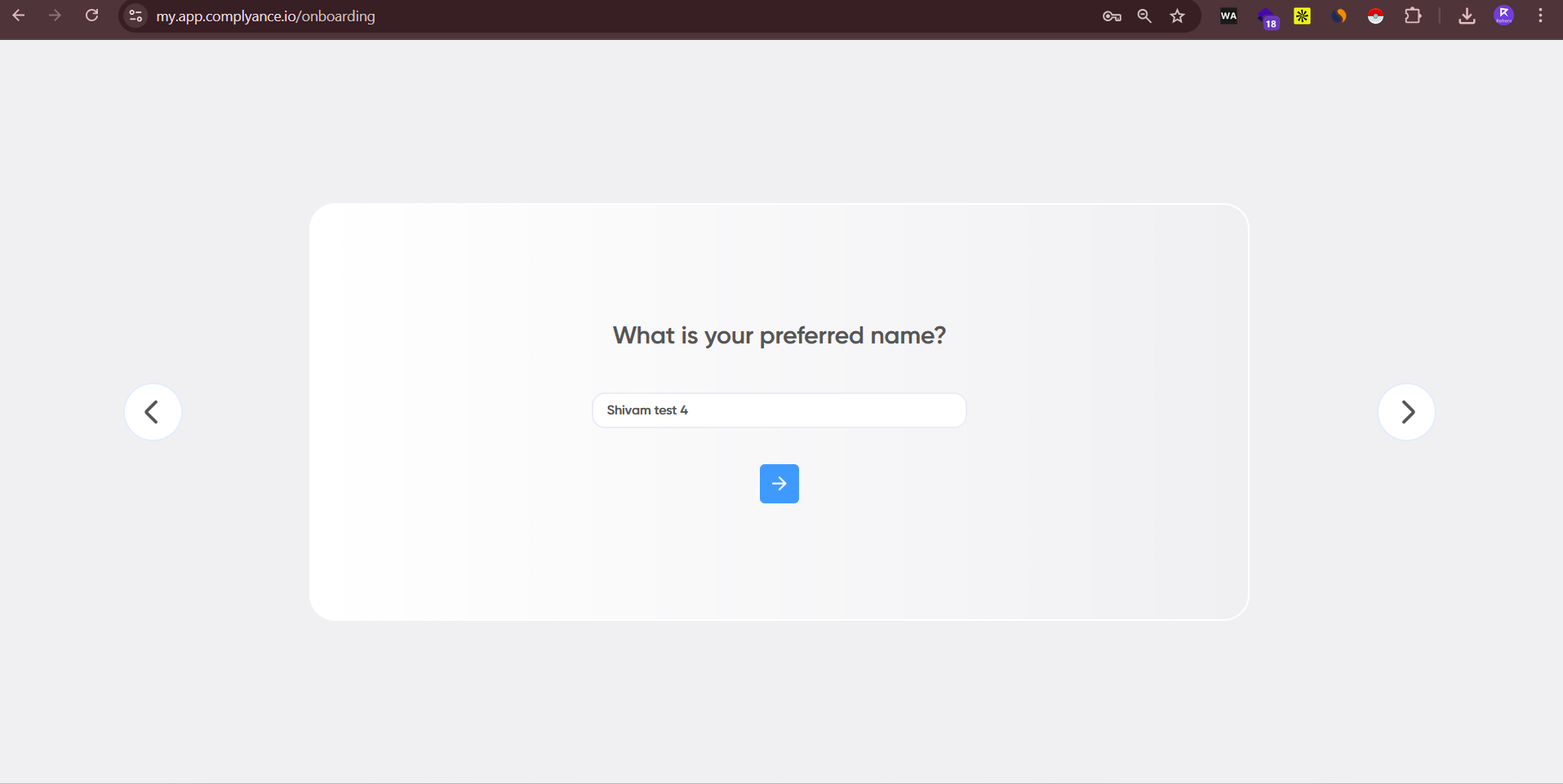
4.3: Add Your Company Name
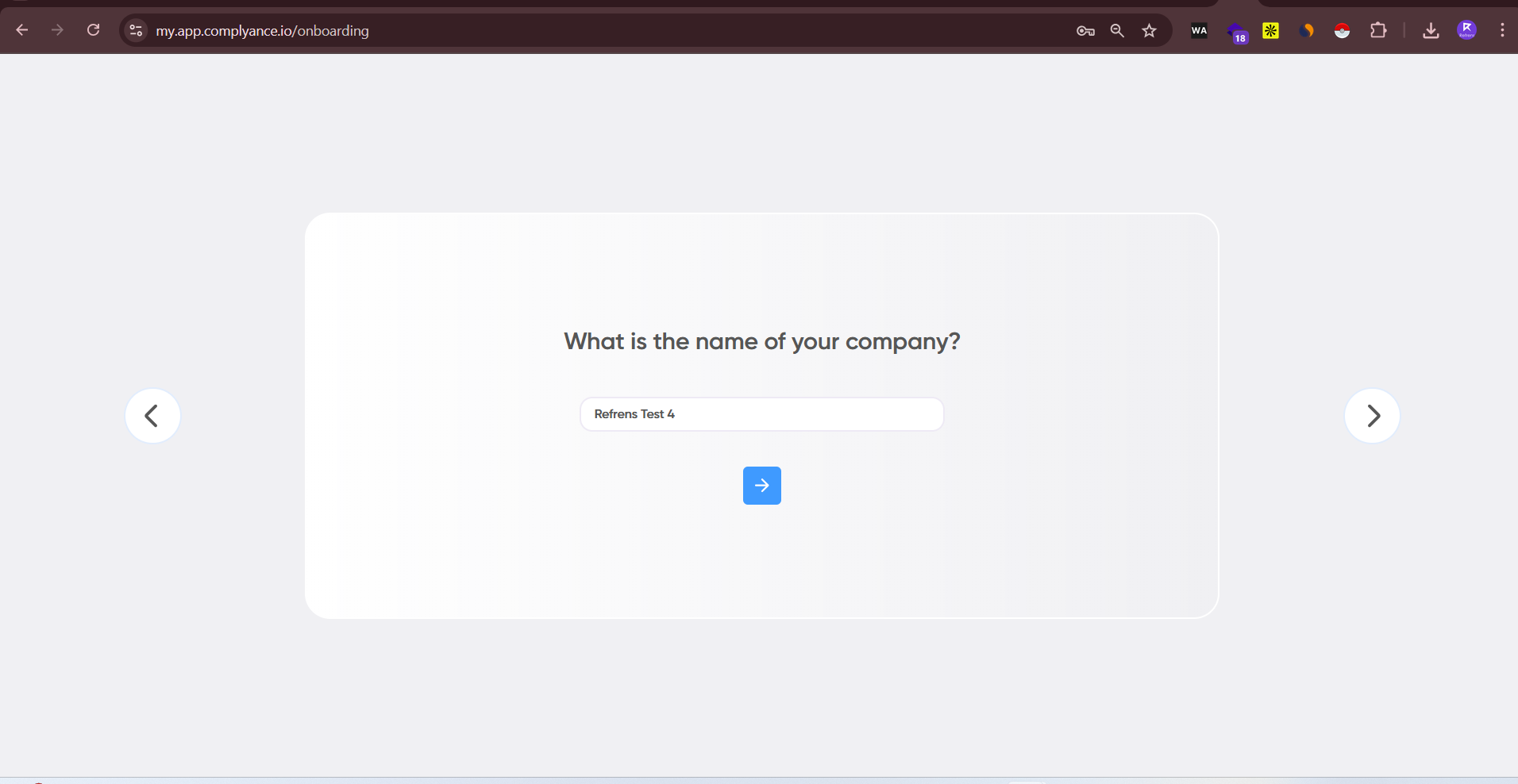
4.4: Click "Finish" to proceed further
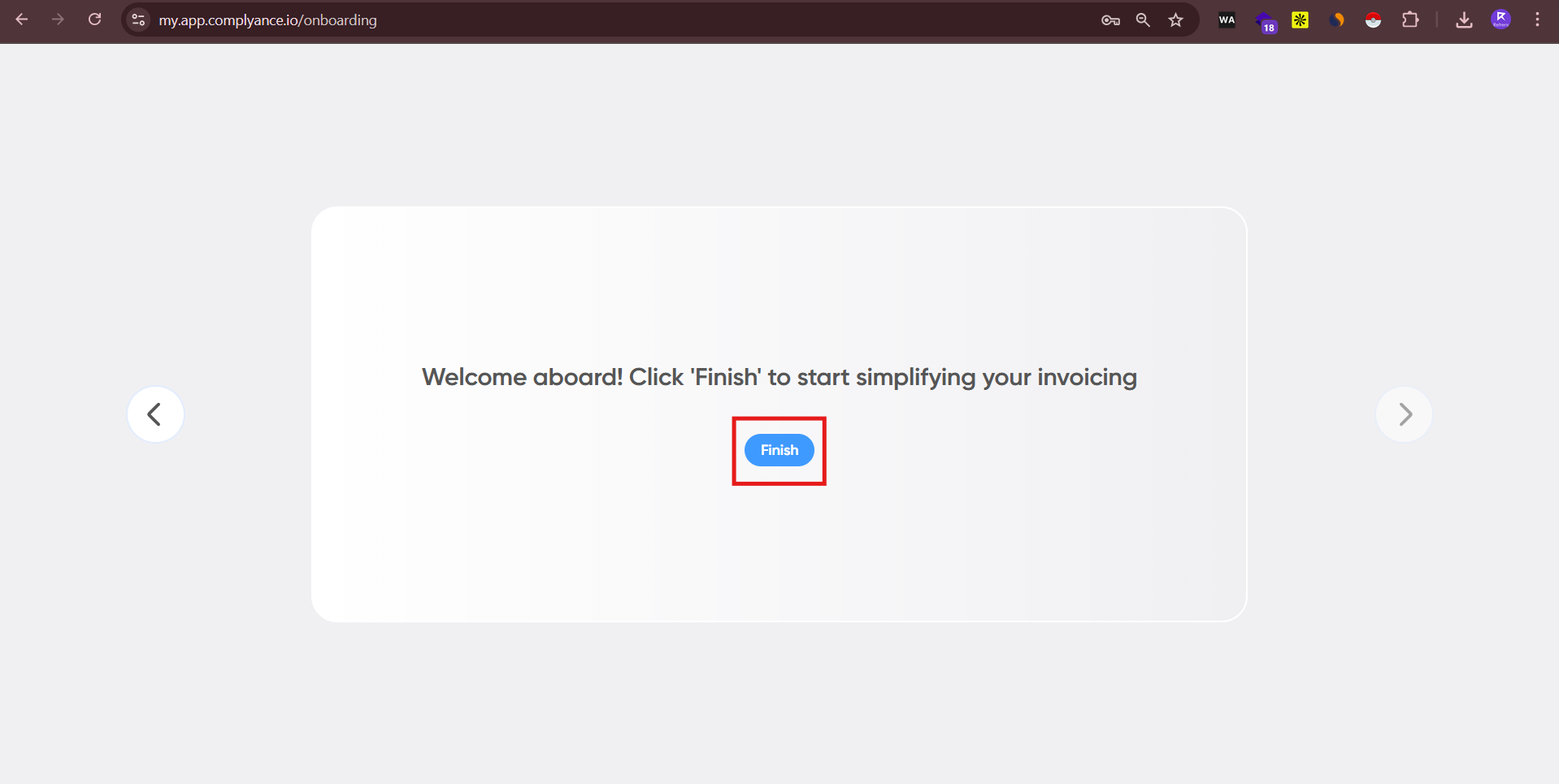
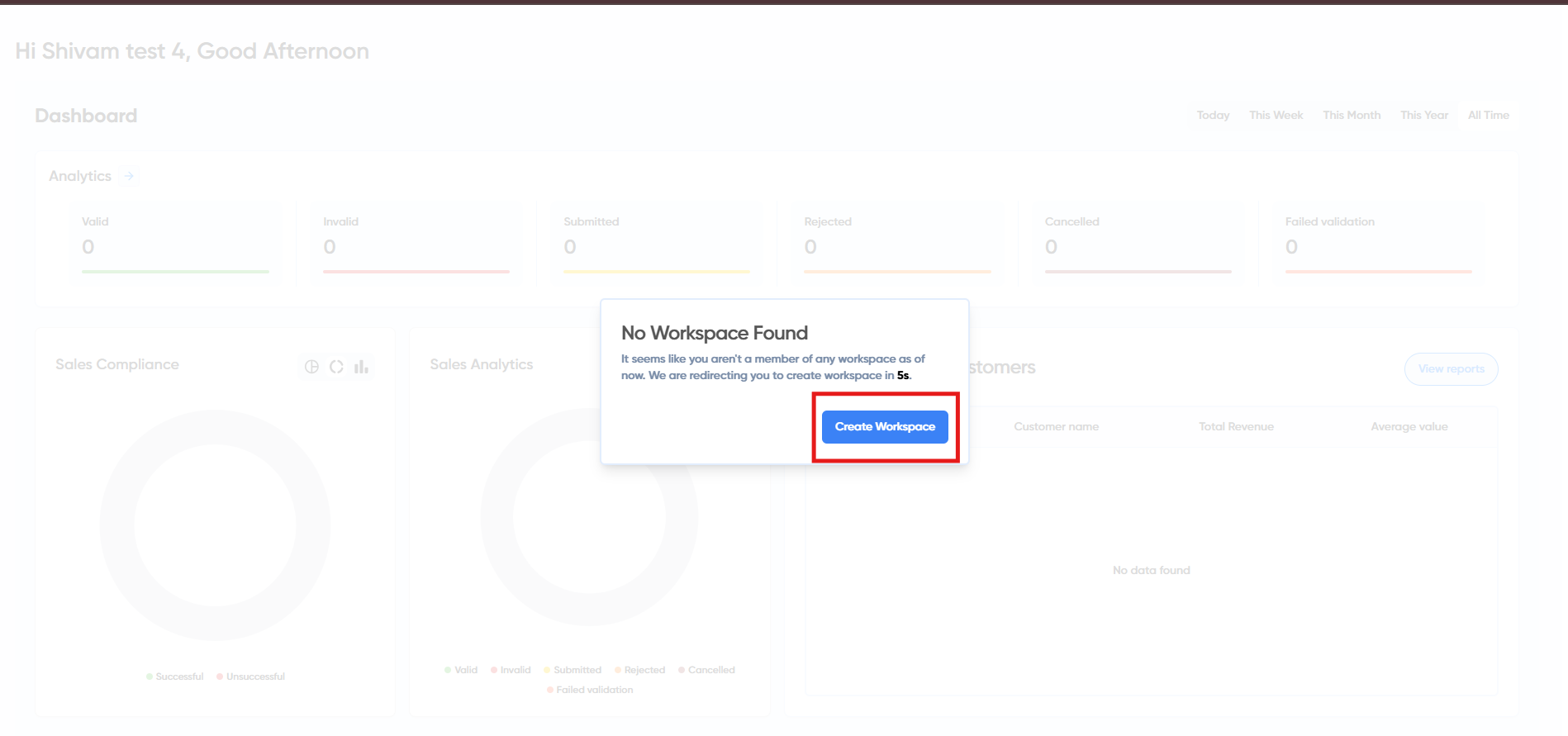
Step 5: Click on "Create Workspace"
Step 6: Add Workspace Details
Add your Workspace Name and Workspace URL (Do not use spaces or capital letters in the URL):
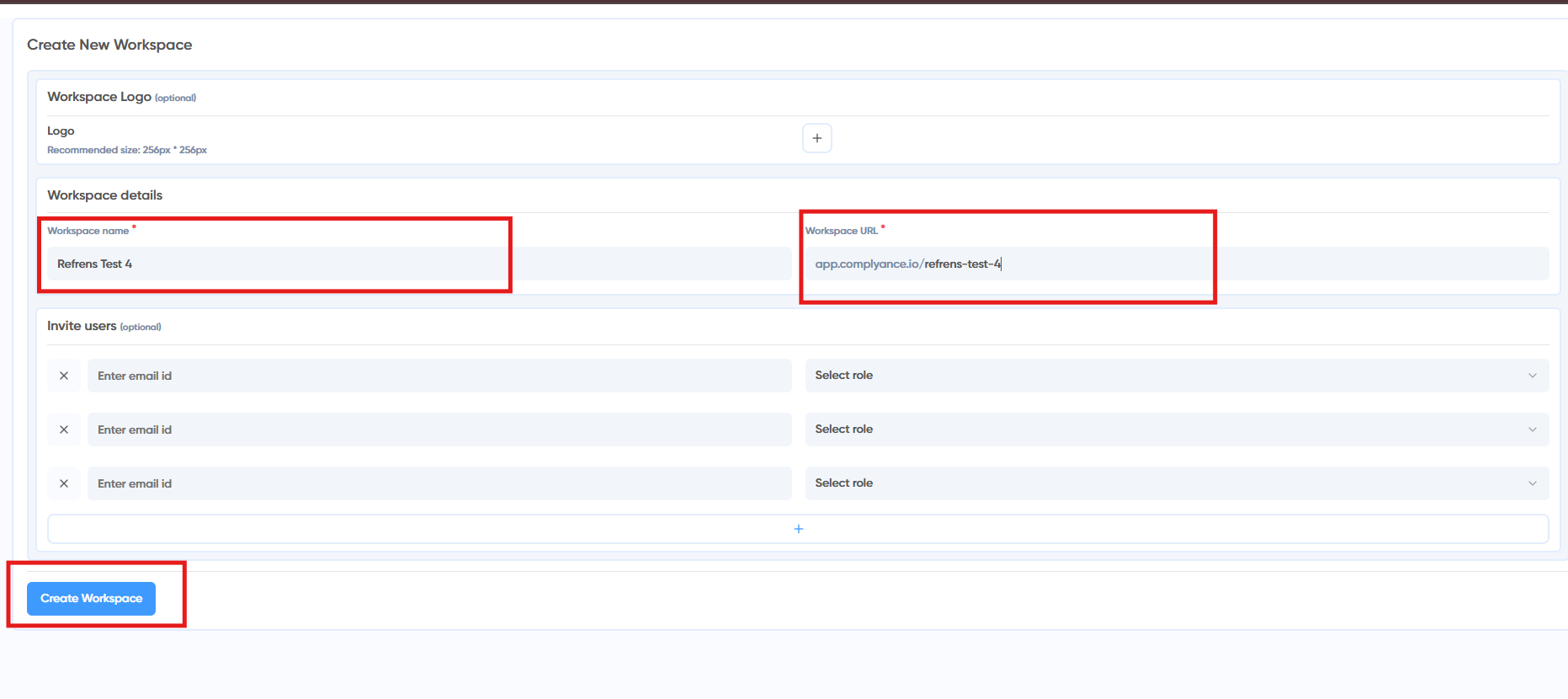
Once done, click "Create Workspace" to finish workspace setup.
Step 7: Go to the Sidebar > Onboard
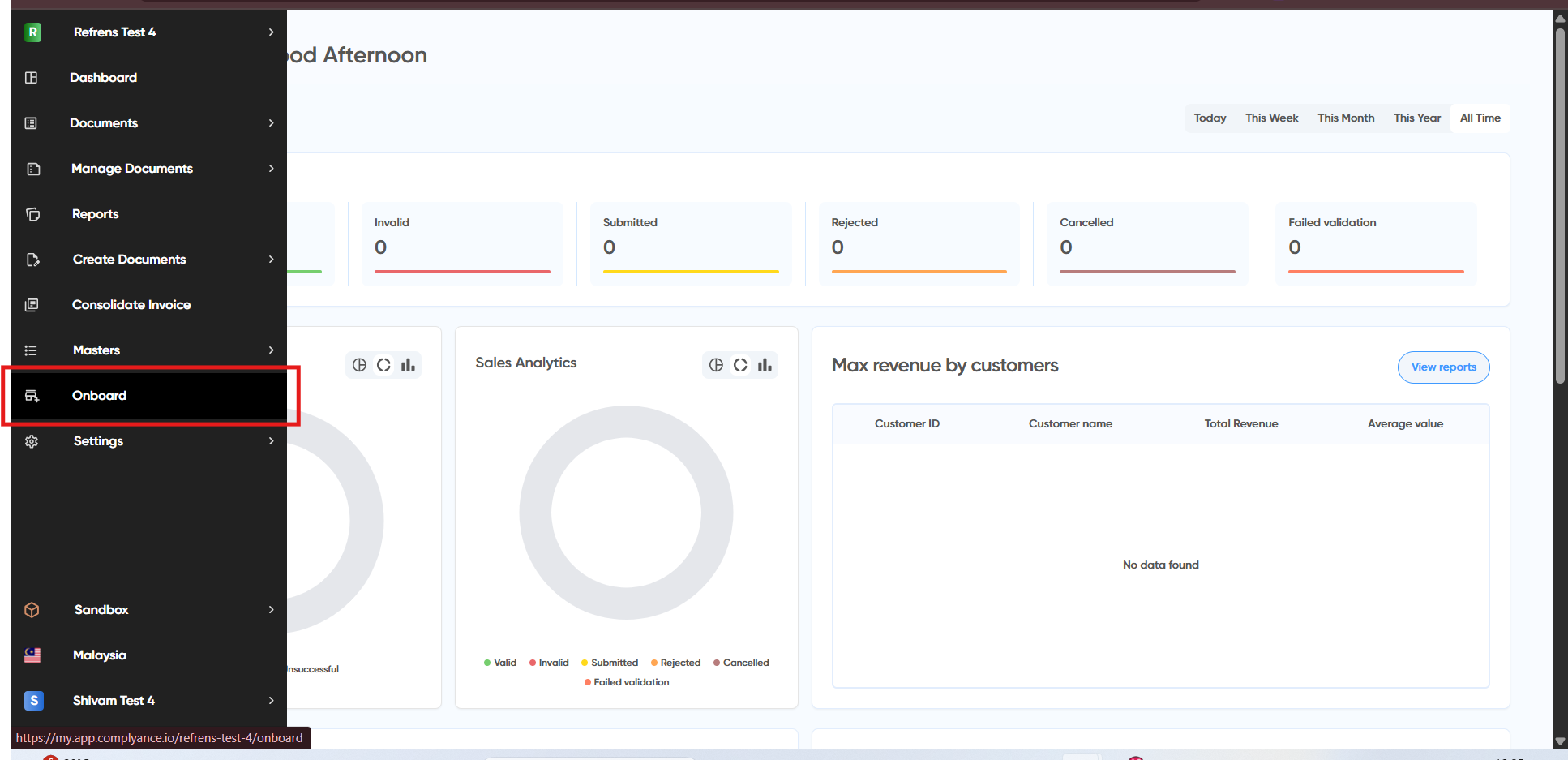
Step 8: Add Business Information
Add your business information such as Name, TIN< BRN, Address, Phone Number, Industry, etc.
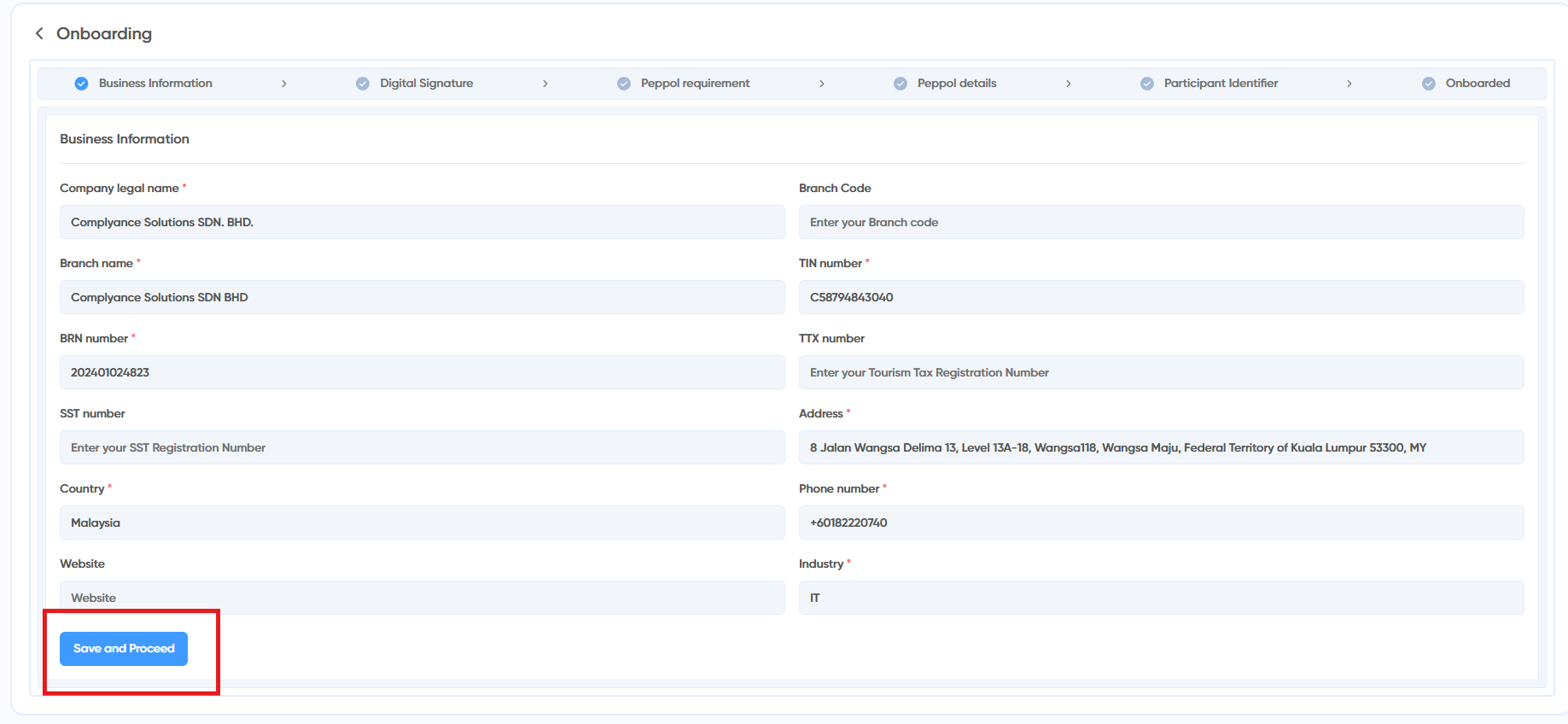
Click "Save & Proceed" once done.
Step 9: Upload Digital Signature & PIN
Upload the digital signature provided and add the PIN provided by your Account Manager:
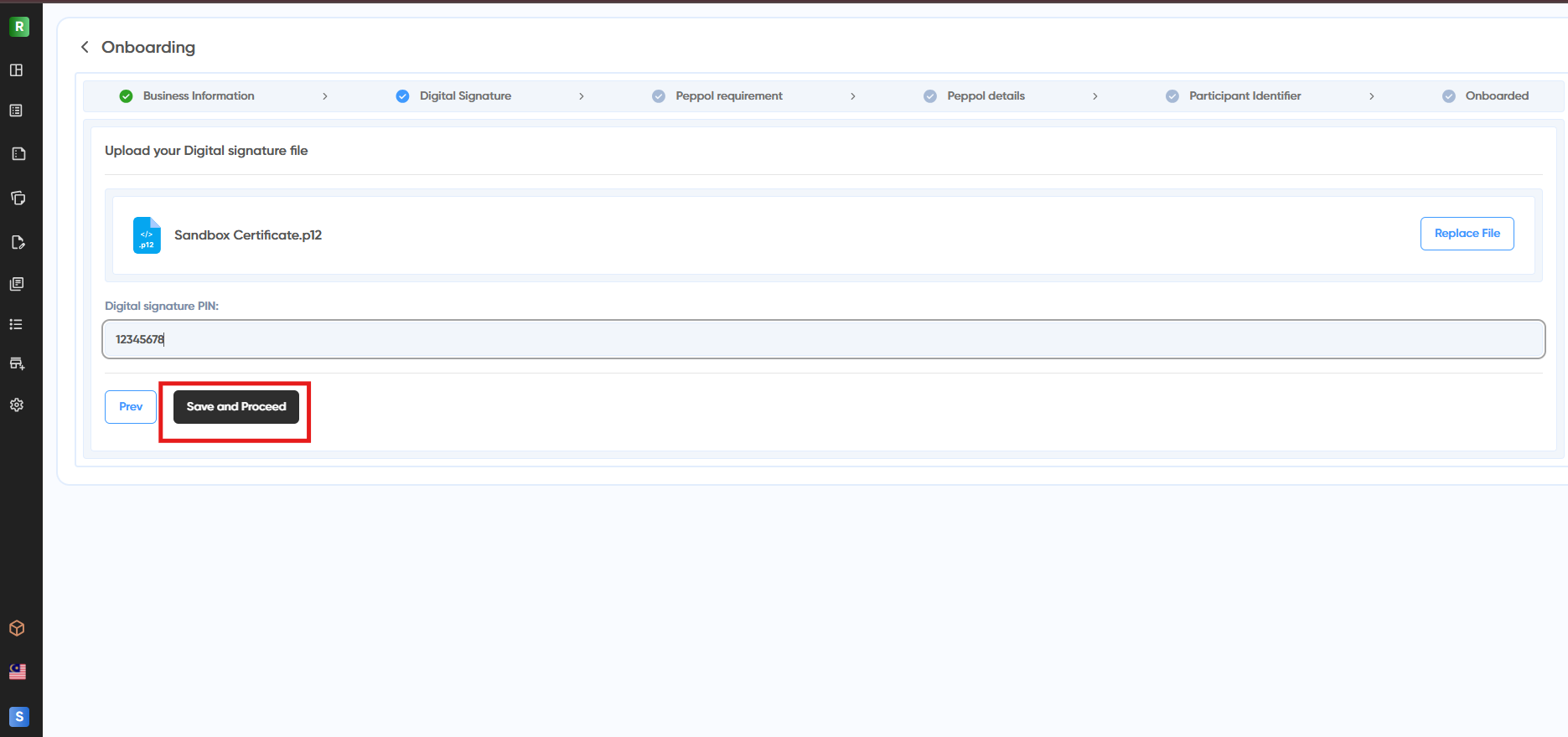
Click "Save and Proceed" to proceed further.
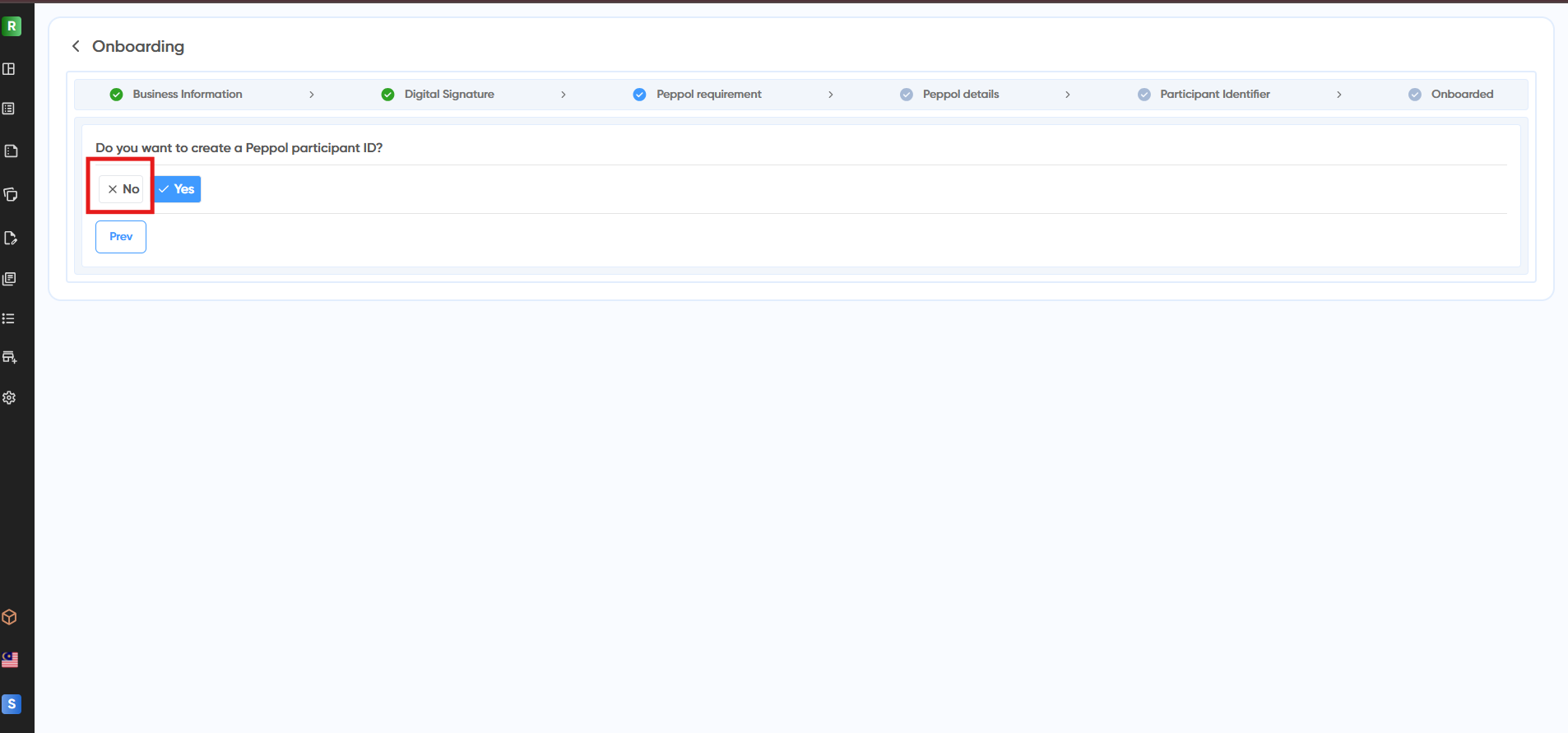
Step 10: Select "No" for Peppol Participation ID
Step 11: Get the API Keys
You will see the API keys on your onboarding dashboard:
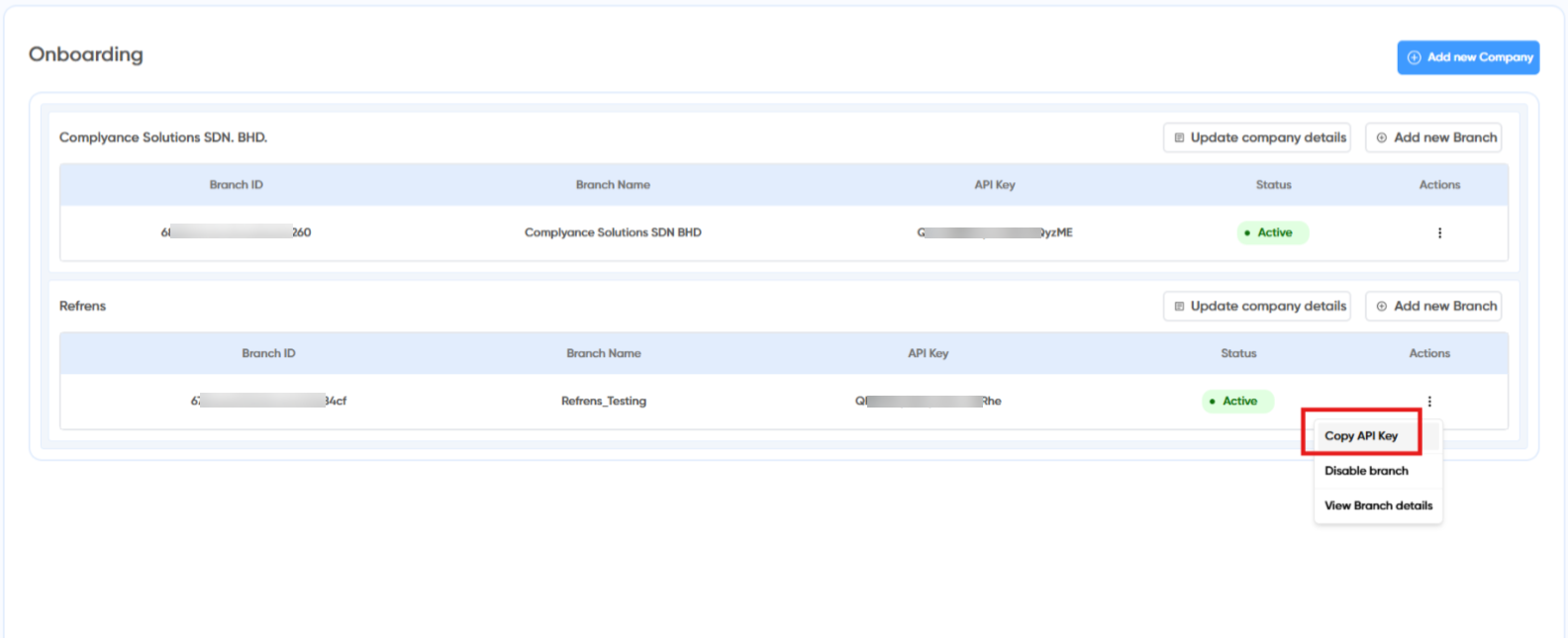
Just click on the three dots icon under the "Actions" option and click "Copy API Key" to copy the API key and paste it on Refrens >
Updated on: 10/07/2025
Thank you!